> ## Documentation Index
> Fetch the complete documentation index at: https://bunnynet-cb9733c2-burrow-origin-shield.mintlify.site/llms.txt
> Use this file to discover all available pages before exploring further.
# SSL for Custom Domains
> Enable free Let's Encrypt SSL or upload your own certificate for custom hostnames.
Bunny provides free auto-renewing SSL certificates via Let's Encrypt, or you can upload your own certificate from a commercial provider.
## Prerequisites
Your custom domain must point to Bunny using a CNAME record before SSL validation can succeed. See [Custom Hostname](/cdn/custom-hostname) for setup instructions.
On Cloudflare, disable the proxy option (orange cloud icon). Proxying hides
DNS resolution and prevents SSL validation from working.
To issue a certificate *before* repointing your domain and avoid HTTPS downtime during migration, use [Seamless Domain Migration](/cdn/seamless-migration) instead, which validates ownership over DNS first.
## Free Let's Encrypt certificate
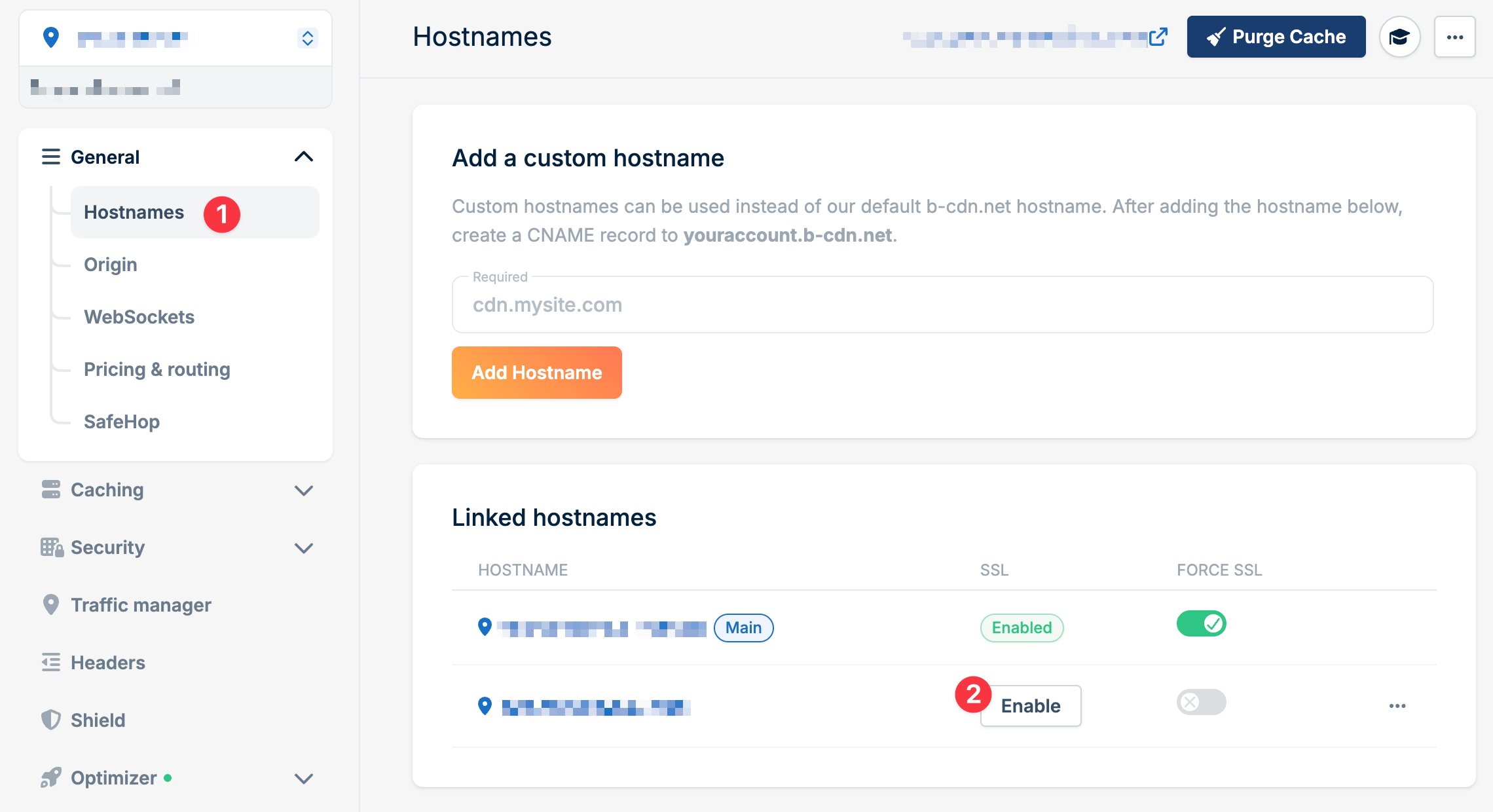
Open your Pull Zone in the [dashboard](https://dash.bunny.net), navigate to **General** > **Hostnames**, and add your custom hostname if you haven't already.
Find your hostname in the **Linked Hostnames** section and click **Enable**.
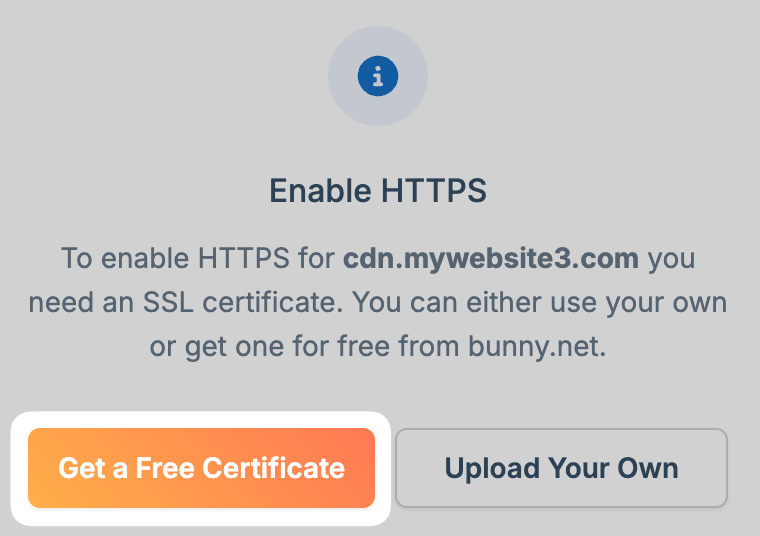
 Choose **Add Free Let's Encrypt Certificate** and click **Continue**.
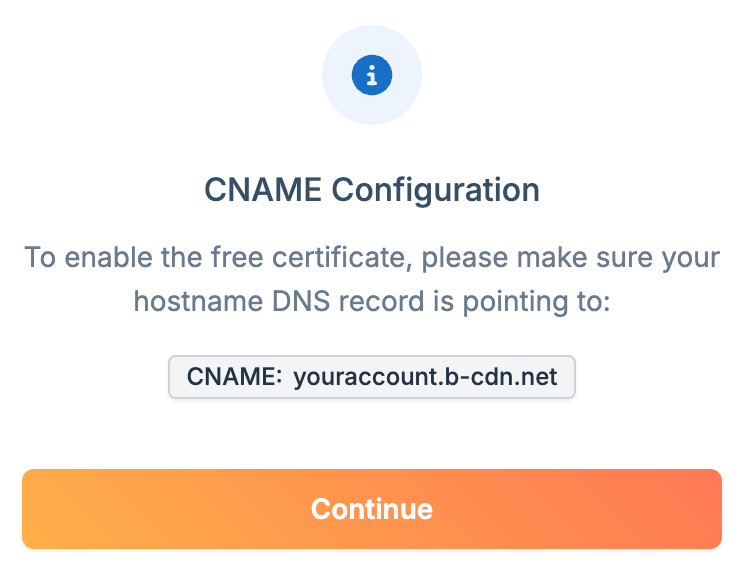
 Bunny issues and installs the certificate automatically. Renewal is handled for you.
Verify your CNAME record is correctly configured and click **Continue** to complete validation.
Bunny issues and installs the certificate automatically. Renewal is handled for you.
Verify your CNAME record is correctly configured and click **Continue** to complete validation.
 Visit your domain using `https://` and confirm the certificate is valid. You can also use [SSL Labs](https://www.ssllabs.com/ssltest/) to test.
## Wildcard certificates
When your domain is hosted on a [Bunny DNS](/dns) zone, Bunny automatically issues and renews a free Let's Encrypt wildcard certificate (`*.yourdomain.com`). Just follow the [Free Let's Encrypt certificate](#free-lets-encrypt-certificate) steps above with your wildcard hostname.
If your domain is hosted elsewhere, move it to Bunny DNS ([DNS quickstart](/dns/quickstart)), or generate the wildcard certificate yourself (for example, with certbot using DNS validation) and [upload it manually](#custom-certificate).
## ACME passthrough to origin
If your origin requests its own certificates over ACME, Bunny forwards requests to `/.well-known/acme-challenge/` through to the origin so it can complete validation and have a certificate issued directly to it.
## Custom certificate
Use this option for certificates from commercial providers, or for wildcard certificates when your domain is not managed by Bunny DNS.
Bunny requires Nginx-compatible format. Combine your certificate chain into a single file by placing your domain certificate at the top, followed by intermediate certificates in order. Save as a single `.pem` file (e.g., `fullchain.pem`). You'll also need your private key file.
Open your Pull Zone, go to **Hostnames**, find your hostname, and click **Enable**.
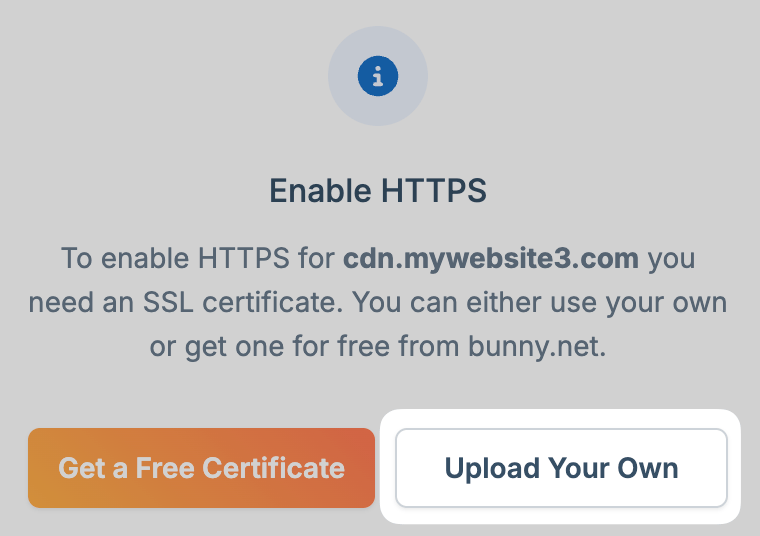
Choose **Upload your own certificate** and click **Continue**.
Visit your domain using `https://` and confirm the certificate is valid. You can also use [SSL Labs](https://www.ssllabs.com/ssltest/) to test.
## Wildcard certificates
When your domain is hosted on a [Bunny DNS](/dns) zone, Bunny automatically issues and renews a free Let's Encrypt wildcard certificate (`*.yourdomain.com`). Just follow the [Free Let's Encrypt certificate](#free-lets-encrypt-certificate) steps above with your wildcard hostname.
If your domain is hosted elsewhere, move it to Bunny DNS ([DNS quickstart](/dns/quickstart)), or generate the wildcard certificate yourself (for example, with certbot using DNS validation) and [upload it manually](#custom-certificate).
## ACME passthrough to origin
If your origin requests its own certificates over ACME, Bunny forwards requests to `/.well-known/acme-challenge/` through to the origin so it can complete validation and have a certificate issued directly to it.
## Custom certificate
Use this option for certificates from commercial providers, or for wildcard certificates when your domain is not managed by Bunny DNS.
Bunny requires Nginx-compatible format. Combine your certificate chain into a single file by placing your domain certificate at the top, followed by intermediate certificates in order. Save as a single `.pem` file (e.g., `fullchain.pem`). You'll also need your private key file.
Open your Pull Zone, go to **Hostnames**, find your hostname, and click **Enable**.
Choose **Upload your own certificate** and click **Continue**.
 Paste your certificate chain and private key into the respective fields, then click **Upload**.
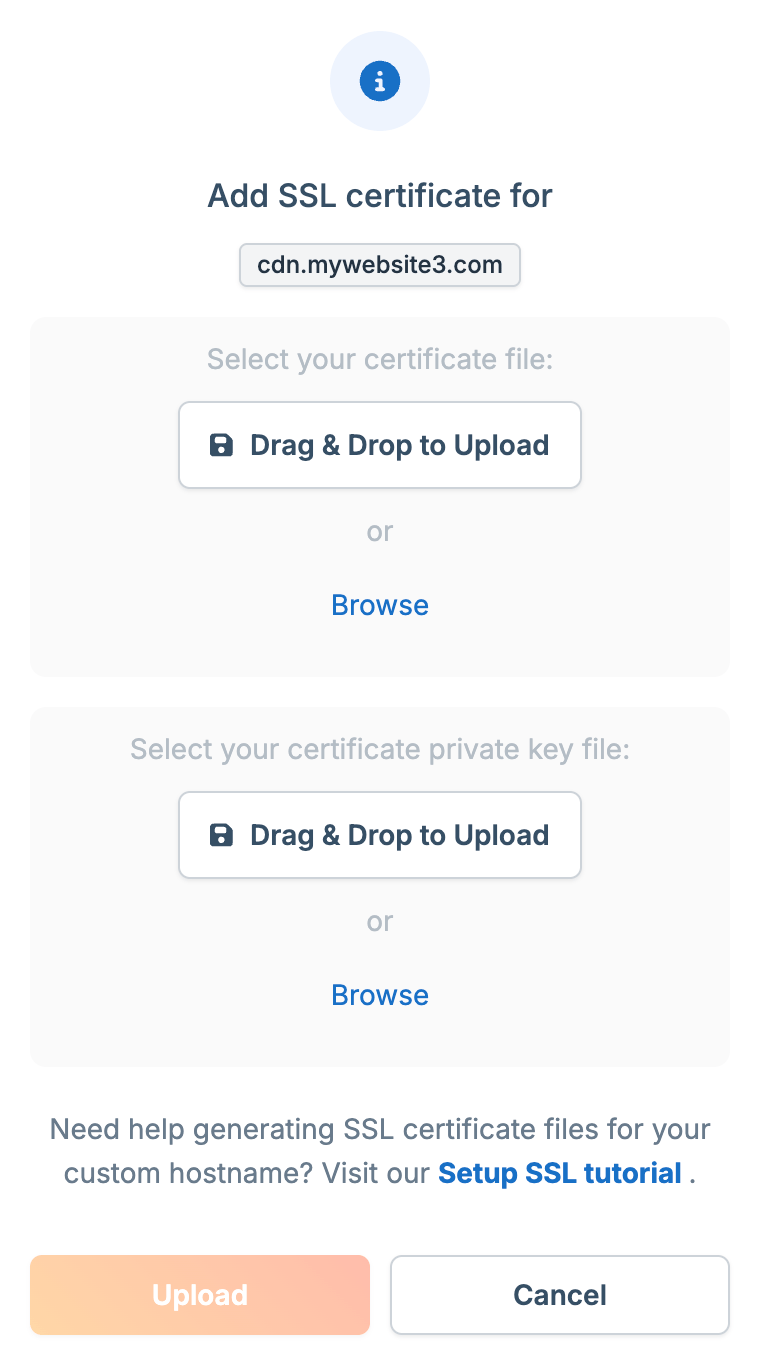 Wait for the certificate to propagate across the network.
## Troubleshooting
### SSL validation fails
Common causes:
* **DNS not propagated**: Use [dnschecker.org](https://dnschecker.org) to confirm your CNAME is resolving globally
* **Cloudflare proxy enabled**: Disable the orange cloud icon on your CNAME record
* **Geolocation blocks**: Let's Encrypt validates from multiple regions (including USA and Europe). If you've blocked these regions via Traffic Manager or Edge Rules, validation may fail
* **CAA records**: If your domain has CAA DNS records, add `letsencrypt.org` to the allowed issuers
### Rate limiting
Requesting certificates too many times in a short period can trigger Let's Encrypt rate limits (up to one week). Be patient when troubleshooting DNS issues before retrying.
## Root domains
CNAME records aren't allowed at the apex level (`yourdomain.com`) by most DNS providers. You have two options:
1. Use a subdomain like `www.yourdomain.com` with a CNAME, then redirect the apex to it
2. Use [Bunny DNS](/dns) with [CDN Acceleration](/cdn/cdn-acceleration), which handles this automatically
Wait for the certificate to propagate across the network.
## Troubleshooting
### SSL validation fails
Common causes:
* **DNS not propagated**: Use [dnschecker.org](https://dnschecker.org) to confirm your CNAME is resolving globally
* **Cloudflare proxy enabled**: Disable the orange cloud icon on your CNAME record
* **Geolocation blocks**: Let's Encrypt validates from multiple regions (including USA and Europe). If you've blocked these regions via Traffic Manager or Edge Rules, validation may fail
* **CAA records**: If your domain has CAA DNS records, add `letsencrypt.org` to the allowed issuers
### Rate limiting
Requesting certificates too many times in a short period can trigger Let's Encrypt rate limits (up to one week). Be patient when troubleshooting DNS issues before retrying.
## Root domains
CNAME records aren't allowed at the apex level (`yourdomain.com`) by most DNS providers. You have two options:
1. Use a subdomain like `www.yourdomain.com` with a CNAME, then redirect the apex to it
2. Use [Bunny DNS](/dns) with [CDN Acceleration](/cdn/cdn-acceleration), which handles this automatically