> ## Documentation Index
> Fetch the complete documentation index at: https://bunnynet-cb9733c2-burrow-origin-shield.mintlify.site/llms.txt
> Use this file to discover all available pages before exploring further.
# Dashboard
> Manage files directly from the bunny.net dashboard
The bunny.net dashboard provides a visual interface for managing files in your storage zones without writing code. It's ideal for quick file uploads, visual file organization, and non-technical team members managing content.
## Access the file browser
1. Log in to your bunny.net dashboard
2. Navigate to **CDN > Storage** in the left sidebar
3. Select your storage zone
4. Click **Browse Files**
## Manage folders
Create and organize folders to structure your files:
1. In the file browser, click **New Folder**
2. Enter a folder name
3. Click **Create**
When uploading files via API, or SDKs, folders are created automatically if they don't exist. The dashboard allows you to create folders manually before uploading files.
**Folder operations:**
* **Navigate**: Click on folder names to browse their contents
* **Delete**: Click the delete icon next to a folder (folder must be empty)
## Upload files
1. In the file manager, navigate to your desired directory
2. Click the **Upload** or **Upload Folder** button
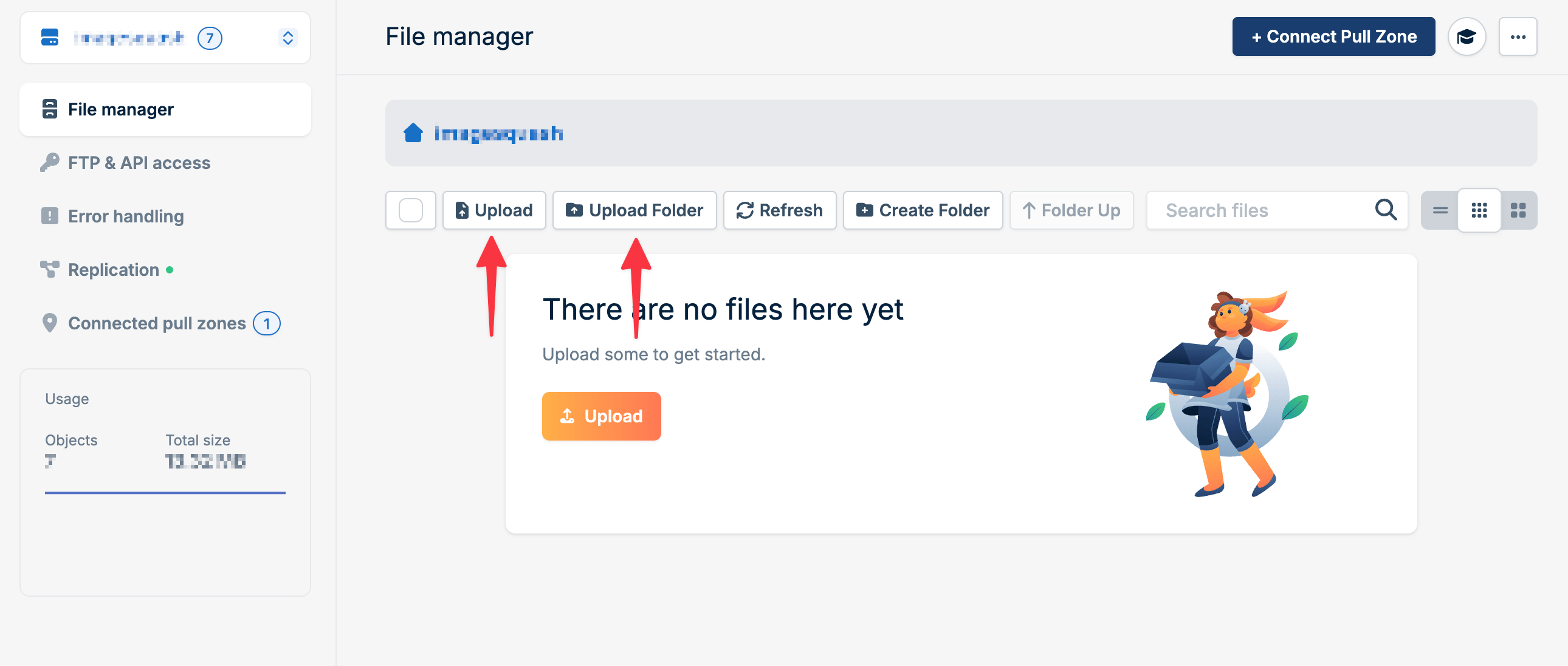 3. Select one or multiple files from your computer
4. Files will upload and appear in the file list
## Bulk actions
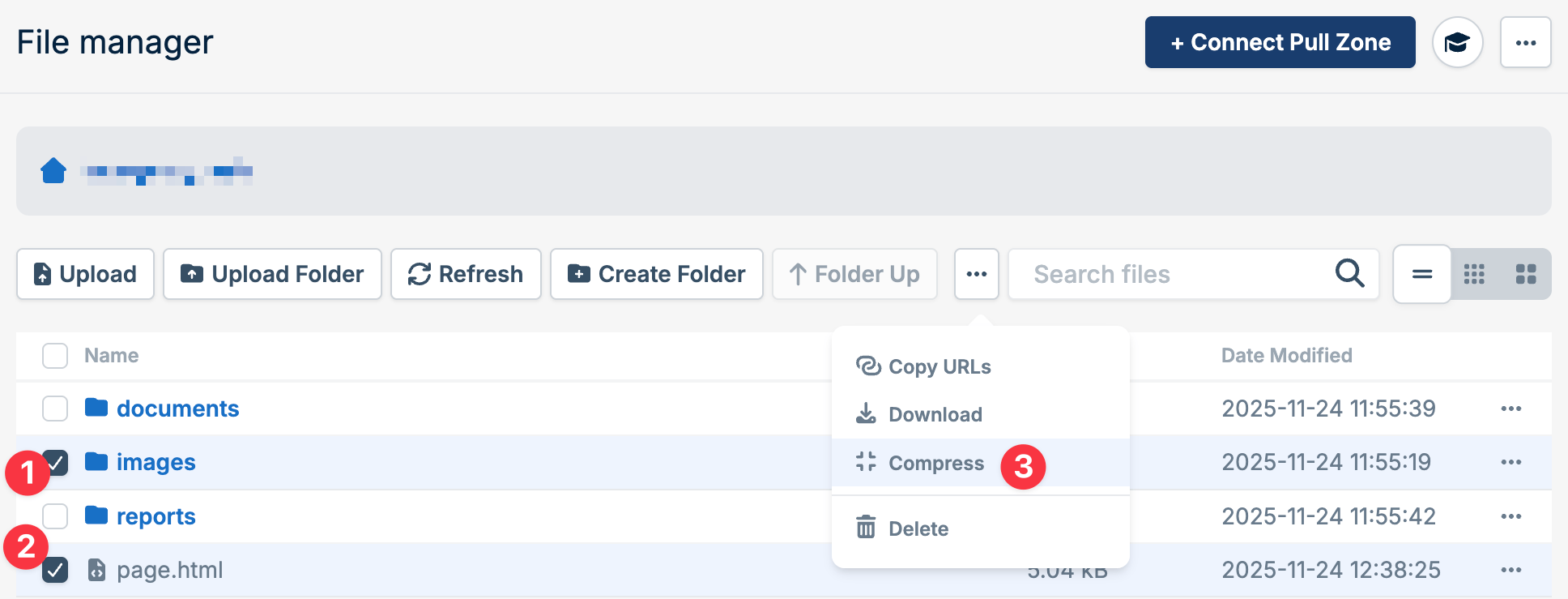
Select multiple files and folders to perform bulk operations:
1. Check the boxes next to the files or folders you want to manage
2. Choose an action from the toolbar:
* **Download** - Download selected items
* **Delete** - Delete selected items
* **Compress** - Compress selected items
You can select individual files, entire folders, or a combination of both for bulk operations. Compressing folders will compress all files within them.
## Download files
**Single file:**
1. Locate the file you want to download
2. Click the download icon next to the file
3. The file will download to your computer
3. Select one or multiple files from your computer
4. Files will upload and appear in the file list
## Bulk actions
Select multiple files and folders to perform bulk operations:
1. Check the boxes next to the files or folders you want to manage
2. Choose an action from the toolbar:
* **Download** - Download selected items
* **Delete** - Delete selected items
* **Compress** - Compress selected items
You can select individual files, entire folders, or a combination of both for bulk operations. Compressing folders will compress all files within them.
## Download files
**Single file:**
1. Locate the file you want to download
2. Click the download icon next to the file
3. The file will download to your computer
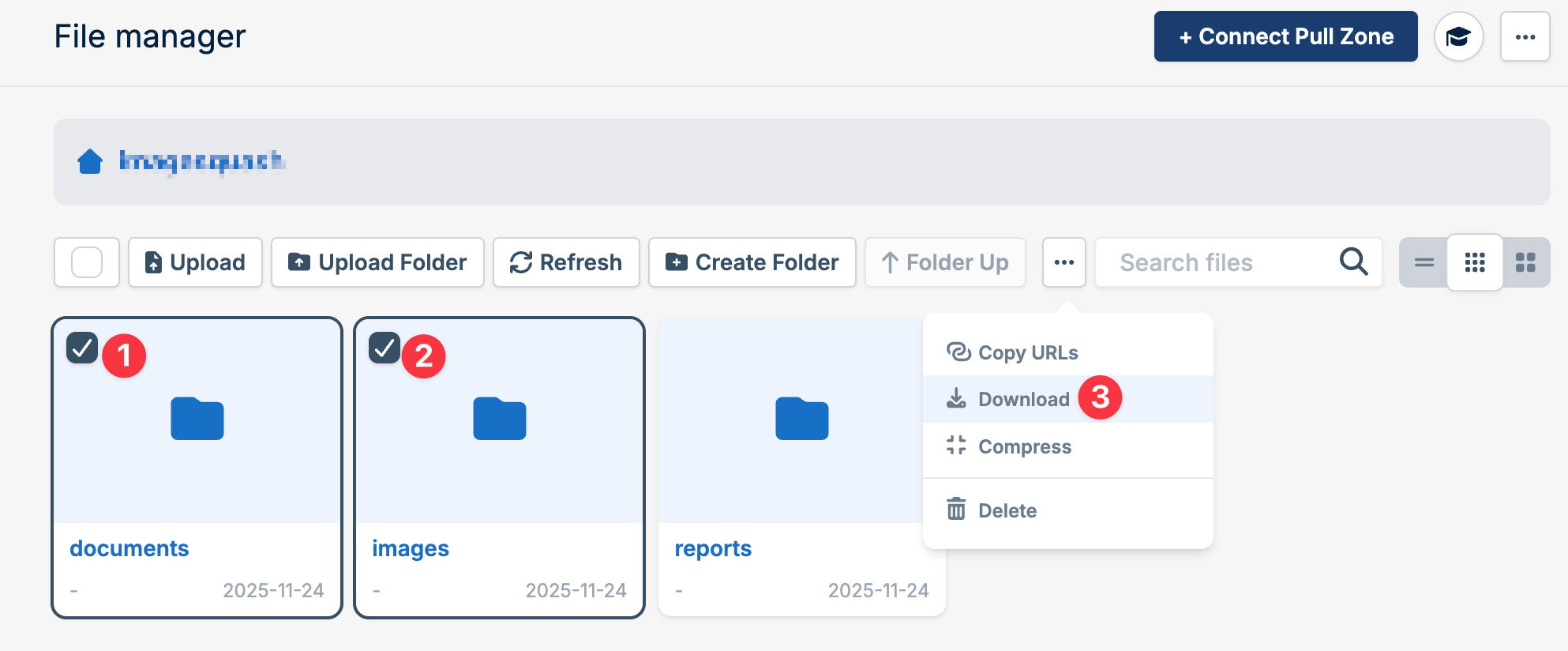
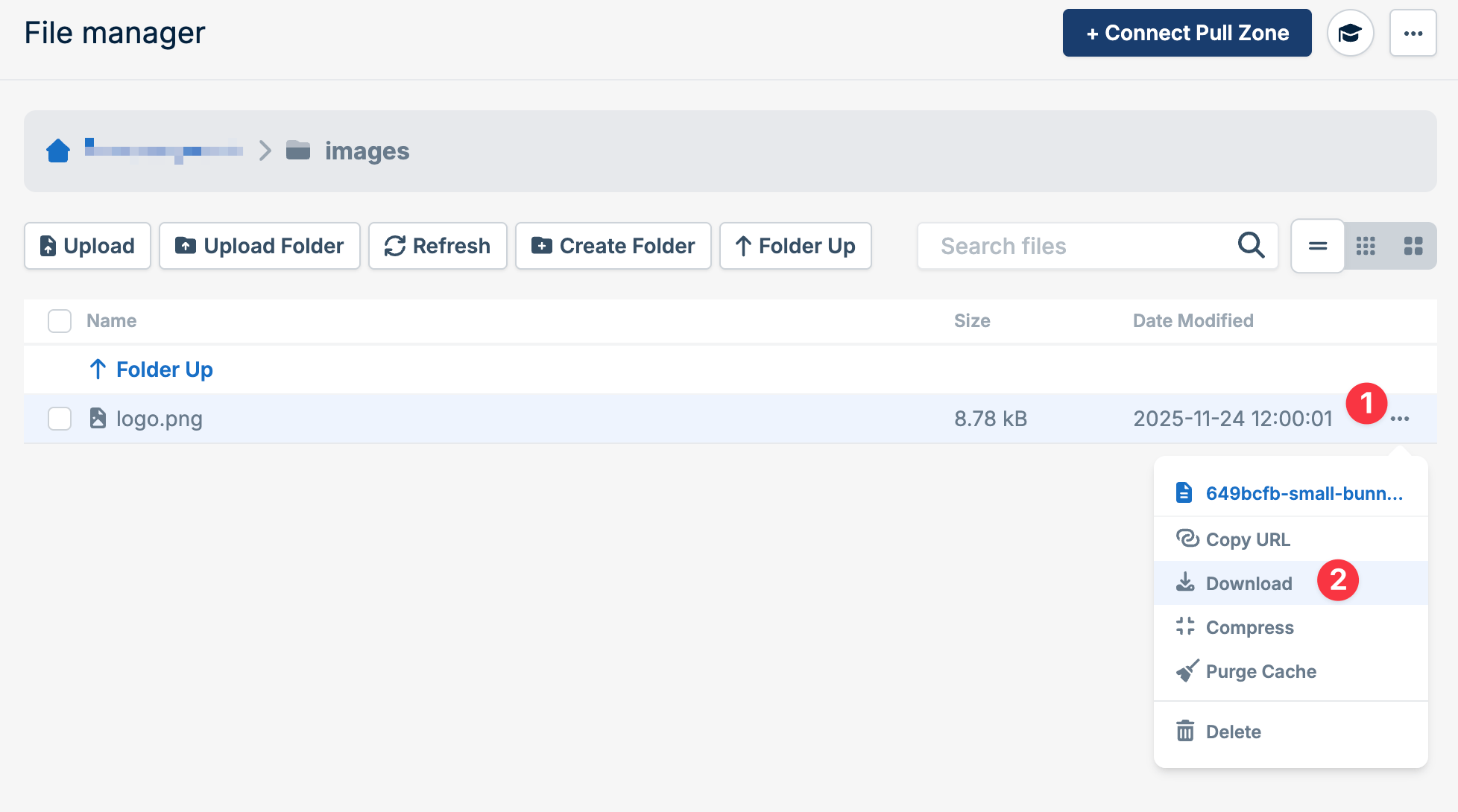 **Multiple files or folders:**
1. Select the files or folders using checkboxes
2. Click the **Download** button in the toolbar
**Multiple files or folders:**
1. Select the files or folders using checkboxes
2. Click the **Download** button in the toolbar
 ## Delete files
 **Single file or folder:**
1. Locate the file or folder you want to delete
2. Click the delete icon next to it
3. Confirm the deletion
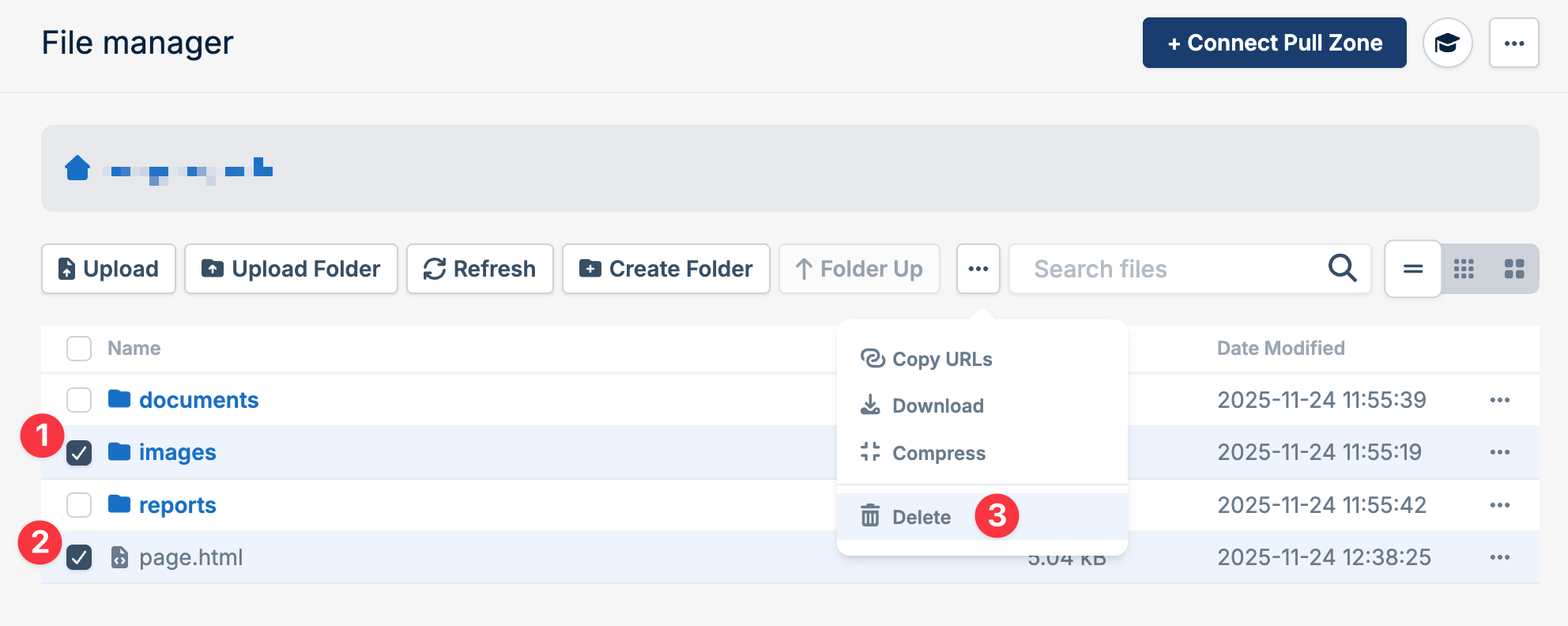
**Multiple files or folders:**
1. Select the files or folders using checkboxes
2. Click the **Delete** button in the toolbar
3. Confirm the deletion
Deleted files cannot be recovered. Make sure you have backups before deleting important files.
## Compress files
Reduce file size directly from the dashboard without downloading and re-uploading:
**Single file or folder:**
1. Locate the file or folder you want to delete
2. Click the delete icon next to it
3. Confirm the deletion
**Multiple files or folders:**
1. Select the files or folders using checkboxes
2. Click the **Delete** button in the toolbar
3. Confirm the deletion
Deleted files cannot be recovered. Make sure you have backups before deleting important files.
## Compress files
Reduce file size directly from the dashboard without downloading and re-uploading:
 **Single file or folder:**
1. Locate the file or folder you want to compress
2. Click the compress icon next to it
3. The file will be compressed and replaced with the compressed version
**Multiple files or folders:**
1. Select the files or folders using checkboxes
2. Click the **Compress** button in the toolbar
3. Selected items will be compressed in place
Compressing folders will compress all files within them. This is useful for optimizing images and other compressible files.
## Copy CDN URL
Once you connect a Pull Zone, each file has a CDN URL for public access:
```bash theme={null}
https://your-zone-name.b-cdn.net/path/to/file.jpg
```
Click the copy icon next to any file to copy its CDN URL to your clipboard.
**Single file or folder:**
1. Locate the file or folder you want to compress
2. Click the compress icon next to it
3. The file will be compressed and replaced with the compressed version
**Multiple files or folders:**
1. Select the files or folders using checkboxes
2. Click the **Compress** button in the toolbar
3. Selected items will be compressed in place
Compressing folders will compress all files within them. This is useful for optimizing images and other compressible files.
## Copy CDN URL
Once you connect a Pull Zone, each file has a CDN URL for public access:
```bash theme={null}
https://your-zone-name.b-cdn.net/path/to/file.jpg
```
Click the copy icon next to any file to copy its CDN URL to your clipboard.
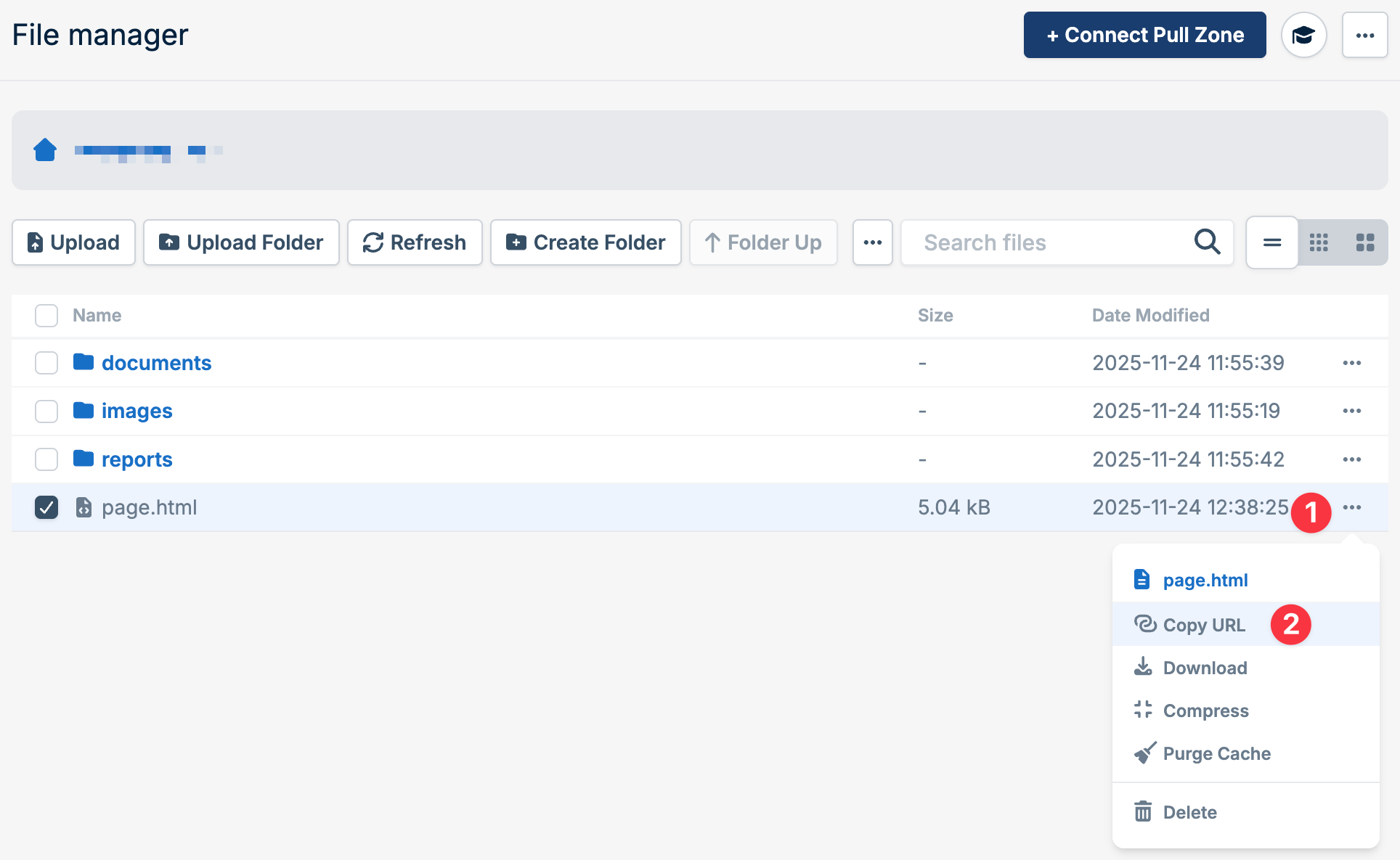 If multiple Pull zones are connected to your Storage zone then multiple CDN URLs will be visible.